

Modules
Modules are the main sections of a Pianola application. They are the areas users open from the navigation to browse, create, edit, and manage a particular part of the application.
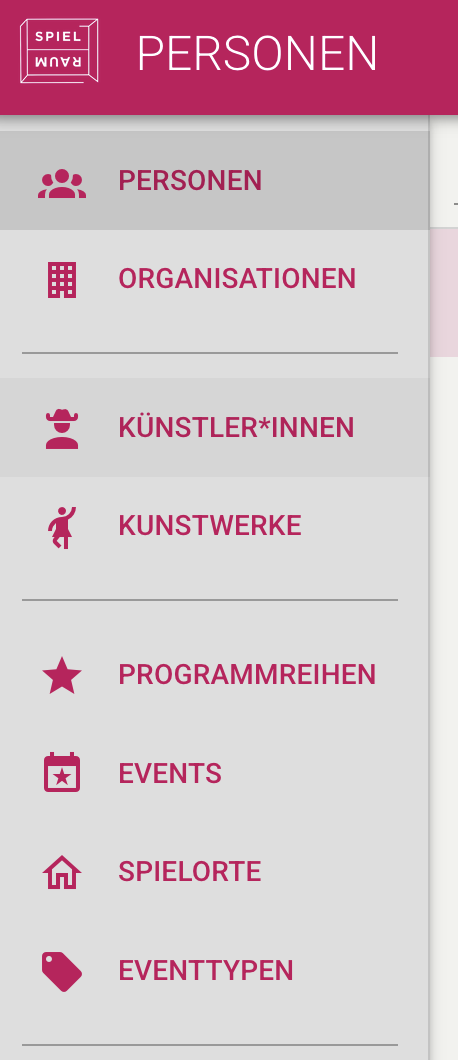
Most modules are based on a specific entity in the database. For example, an application might have modules for Films, People, Events, Projects, Organisations, or Documents. Each module gives users a structured way to work with records of that type.
Dashboard modules are a different pattern. They are still shown as modules in the application navigation, but they do not usually represent one database entity with a standard record list and record detail view. Dashboard modules are covered in the Dashboards section.
Module Purpose
Entity Type
An entity-based module usually represents one main type of record in the application.
For example, a Films module would normally be used to manage film records. A People module would normally be used to manage person records. The module does not need to expose every field or every relationship in the database, but it should give users access to the information and actions that belong to that part of the application.
User Workflow
A module should reflect how users think about the work they need to do.
Some modules are used every day and need fast browsing, filtering, editing, and export options. Other modules are used only by administrators or specialist roles and can have a simpler structure.
The module structure should make it clear where each type of work belongs. If two parts of the application use the same underlying data in very different ways, they may need separate views or even separate modules.
Relationships to Other Records
Modules often connect to other parts of the application through related records.
For example, a Project might have related People, Documents, Tasks, Events, or Notes. These relationships can appear inside the module through record portals, tables, cards, buttons, or links to other modules.
Module Boundaries
Good module boundaries usually follow stable business concepts: the things users need to find, discuss, edit, approve, export, or report on. When module boundaries are clear, the rest of the application structure becomes easier to define, including views, fields, related records, actions, queries, and lists.
The order of modules also affects how the application is understood. Central or frequently used modules should usually appear before supporting modules, and related modules can be placed near each other so the application structure is easier to scan.
Submodules can be used to keep secondary or closely related modules under a parent module.
Navigation
Module Name
The module name is the label shown in the application navigation and in module-level page titles.
The name should usually match the language users already use for that type of record. Short plural names often work well for record-based modules, such as Films, People, Projects, or Organisations.
Path
Each module has its own path in the application URL.
The path should be stable and readable. It usually follows the module name, but it may use a shorter or more technical form when that makes URLs clearer.
Changing a path after users have started working with an application can affect saved links and shared URLs, so it is usually best to decide paths early in the project.
Icon
Modules can have icons in the navigation drawer.
Icons are useful when the application has many modules or when the navigation drawer is collapsed. They should be recognisable at small sizes and should support the module name rather than introduce a separate metaphor.
Colour
Modules can have their own colours.
Module colours can help users recognise where they are in a larger application. They are most useful when colour is used consistently and sparingly. Too many strong colours can make the navigation harder to scan.
Dividers
Dividers can separate larger groups of modules in the navigation.
They are useful when an application has several areas of work, such as core records, planning tools, reports, administration, or settings. Dividers should support the order of the modules and make the navigation easier to scan.
Visibility and Access
Submodules
Submodules are modules that only appear when a parent module is selected.
They are useful when a group of modules belongs to the same area of the application but should not all be shown at the top level of the navigation. For example, a parent module might represent the main working area, while its submodules provide access to related records, supporting workflows, or more specific administration pages.
Submodules can make the navigation easier to scan by keeping secondary areas close to the module they belong to. They should still represent distinct parts of the application, not just individual tabs or sections within a record.
Access Rules
Access to a module can be limited by role or permission.
Some modules are appropriate for all logged-in users. Others may contain sensitive data, administrative settings, or workflow controls that should only be available to a smaller group.
Access rules should be considered together with field visibility, read-only states, and action permissions. A user may be allowed to open a module but only see certain records or only perform certain actions.
Module Behaviour
Default View
A module can define which view users see first when they open it.
The default view should match the main way users work with records in that module. Some modules need a Master Detail view for fast browsing and editing. Others may use a list, a horizontal master detail layout, a calendar, or another view pattern. The available view types are covered in the Views section.
Record Creation and Deletion
Modules can define how new records are created and whether creation or deletion controls are available.
The text for creating a new record should match the module language, such as "new person", "new project", or "new booking". Some modules may hide the new-record button or delete button when records should only be created or removed through another workflow.
Record Presentation
Title Fields
Title fields define the text used to identify each record in a module.
Pianola can use four title-related fields: the main title, a subtitle before the title, a subtitle after the title, and a second subtitle after the title. This allows a record to be shown with a primary label and useful surrounding context.
The main title should normally use the field or field combination that users recognise most easily, such as a name, title, reference number, or project code. The subtitle fields can add context such as organisation, status, date, location, category, or another short detail that helps distinguish similar records.
Title fields appear in the Master Detail list and in the main record display header.
Avatars
Modules can use an avatar field to give records a visual marker.
An avatar might be a person photo, an organisation logo, a document thumbnail, or another image that helps users recognise records quickly. Avatars are most useful when the image adds practical recognition value. They are less important for records that are mainly identified by text, dates, or reference numbers.
Record Sort Order
A module can define the default order in which records are shown.
The sort order should match the way users usually scan the module. Some modules work best alphabetically, such as People or Organisations. Others may need the newest records first, a date-based order, a custom sequence, or a status-based order.
Users may still be able to sort or filter records in specific views, but the default sort order affects the first impression of the module and the order users return to most often.
Filtering
Variable-Based Filtering
A module can show only records that match a selected value, such as a project, year, organisation, or event.
The selected value can apply only to one module. In that case, changing the value changes the records shown in that module without affecting other modules.
The selected value can also be shared across multiple modules. In that case, the same prefilter value keeps several modules in the same context. For example, if the selected project is shared, modules for People, Bookings, Documents, or Tasks can all show records connected to that project.
The module defines which field on its records should be matched against the selected value.
Fixed Filtering
A module can also have a fixed filter that is always applied.
Fixed filters are useful when a module should only ever show a defined subset of records. For example, a module might show only active records, only records of a particular type, or only records that belong to a specific workflow state.
Unlike a variable-based filter, a fixed filter does not change when a user selects a different context elsewhere in the application.